Puoi analizzare i dati di Bitrix24 con agenti IA per sviluppatori, ad esempio Codex o Claude Code. Ti basta descrivere l'attività: l'agente otterrà i dati tramite il connettore BI, applicherà i filtri e preparerà la risposta.
Ad esempio, se vuoi visualizzare gli affari vinti degli ultimi sei mesi, fornisci all'agente l'indirizzo del tuo Bitrix24, la chiave di Analisi BI, il link alla documentazione e descrivi l'attività. L'agente recupererà i dati tramite il connettore BI, selezionerà gli affari vinti e mostrerà il risultato.
Non dovrai analizzare manualmente i parametri della richiesta. Ti basterà descrivere l'attività, verificare il risultato e, se necessario, precisare la richiesta per ottenere altri dati o un formato di risposta diverso.
In questo articolo scoprirai come:
Che cosa preparare per lavorare con uno strumento IA
Per iniziare ti serviranno:
Indirizzo di Bitrix24. Serve all'agente IA per sapere a quale account Bitrix24 inviare le richieste. Ad esempio: https://test.bitrix24.it.
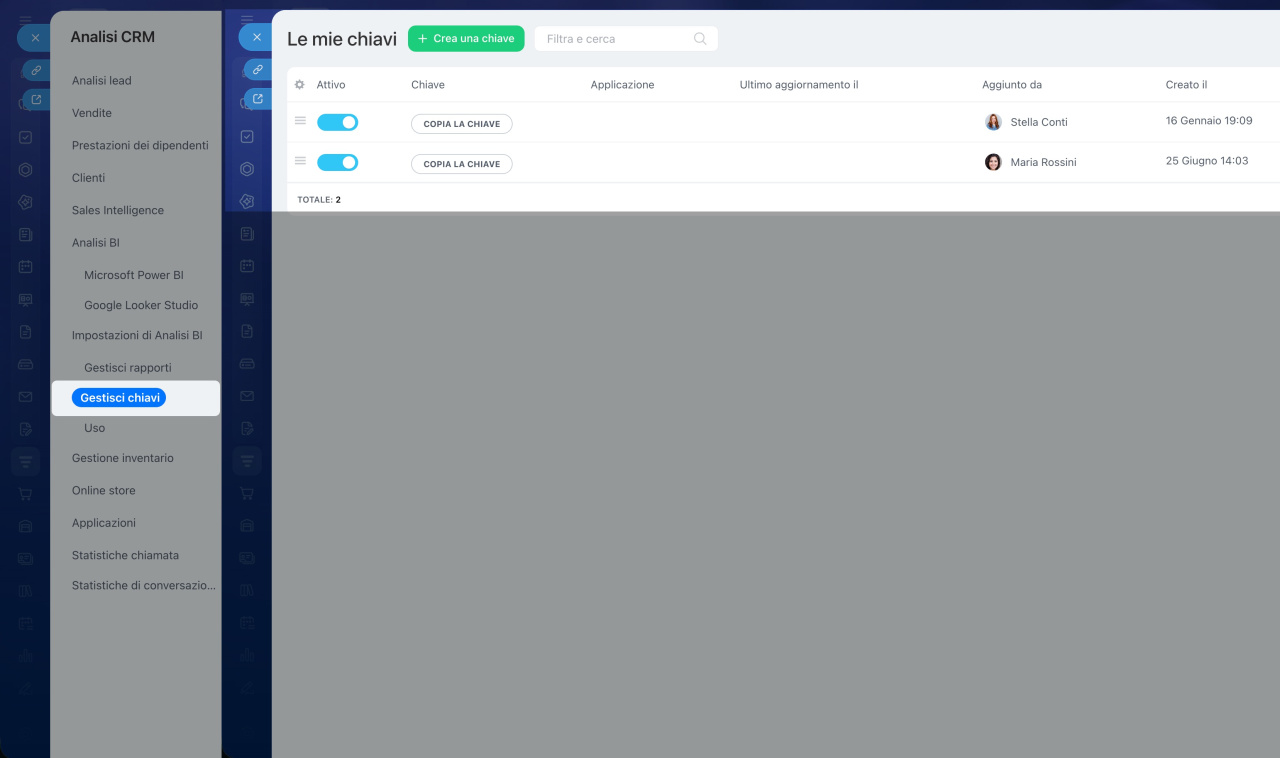
Chiave di Analisi BI. Serve per accedere ai dati. Puoi ottenerla nella sezione CRM > Analisi > Analisi in tempo reale > Analisi BI > Impostazioni di Analisi BI > Gestisci chiavi.
Link alla documentazione o a una skill. Aiuta l'agente a capire quali richieste deve eseguire. La skill descrive come ottenere l'elenco dei dati disponibili, visualizzare i campi e richiedere le righe tramite il connettore BI.
Esempio di skill per l'agente IA
| name | bitrix-bi-connector |
|---|---|
| description | Querying the Bitrix24 BI-connector HTTP API — listing tables (gds.php?show_tables), describing columns (gds.php?desc), and fetching rows (pbi.php) with dateRange and dimensionsFilters predicate filtering (operators EQUALS, CONTAINS, IN_LIST, BETWEEN, IS_NULL, NUMERIC_GREATER_THAN/LESS_THAN with optional EXCLUDE negation). Use this skill whenever the user mentions Bitrix24, bi-connector, biconnector, bi-token, gds.php, pbi.php, or asks how to query, count, or filter leads (crm_lead), deals (crm_deal), tasks (task), contacts, companies, or smart-process entities (crm_dynamic_items_*) from a Bitrix24 portal via its BI-analytics endpoints. Also use when the user is constructing a dimensionsFilters JSON body, debugging EMPTY_SELECT_FIELDS_LIST errors, or seeing unexpected empty results from a Bitrix BI request (often a UTF-8 encoding issue or an unknown-operator silent-failure). |
Bitrix24 BI-connector protocol
This skill captures the HTTP protocol for the Bitrix24 BI-analytics connector — the API that powers Power BI / Google Data Studio integrations and any custom client that reads CRM data from a Bitrix24 portal. Use it when constructing requests, helping users count/filter CRM entities, or implementing a BI client.
Endpoints overview
All three endpoints live on the client's Bitrix24 portal. Every request is HTTP POST and every body MUST include a key field — the client's bi-token. Only the path and query string vary: gds.php for metadata (list/describe), pbi.php for actual data rows.
Where the bi-token comes from: the BI-analytics key-management page of the client's own Bitrix24 portal (path varies by portal locale; on a fresh portal navigate via CRM → Analytics → BI-analytics → BI-analytics settings → Key management, or open {portal}/biconnector/key_list.php directly). Always ask the user for their own portal URL — never hardcode a reference portal (e.g. smith.bitrix24.com from sample docs) in production code.
Endpoint 1 — list tables
POST {portal}/bitrix/tools/biconnector/gds.php?show_tables
Body:
{"key": "<bi-token>"}
Returns [[table_name, table_description], ...].
Endpoint 2 — describe a table's columns
POST {portal}/bitrix/tools/biconnector/gds.php?desc&table=<table_name>
Body:
{"key": "<bi-token>"}
Returns an array of column objects. Key fields per column:
CONCEPT_TYPE—DIMENSIONorMETRIC. METRICs are typically aggregated and grouped by DIMENSIONs — preserve this distinction in any UI or query-builder code.ID— the identifier to use when referencing the column in subsequent requests (this is thenameyou pass in endpoint 3'sfields).NAME— human-readable label.TYPE— data type (e.g.NUMBER,STRING,YEAR_MONTH_DAY_SECOND).AGGREGATION_TYPE,GROUP_KEY,GROUP_CONCAT,GROUP_COUNT,IS_VALUE_SPLITABLE— aggregation/grouping hints, oftennull.
Endpoint 3 — fetch table rows
POST {portal}/bitrix/tools/biconnector/pbi.php?table=<table_name>
Body:
{"key": "<bi-token>", "fields": [{"name": "<column_id>"}, ...]}
fields lists which columns to return; use the ID values from endpoint 2. Response is a 2D array where the first row is the header (column names in request order) and the rest are data rows aligned to that header. Empty cells come back as null or "" — don't treat absence as an error.
Silent-failure traps
The BI-connector has several behaviours where bad requests succeed with HTTP 200 but return misleading results. These cause real bugs because they look indistinguishable from "no data matched":
Unknown fields are silently dropped. If you request fields that don't exist on the table, the API silently drops them. If all requested fields are unknown, you get {"error":"EMPTY_SELECT_FIELDS_LIST"} with HTTP 200 — it does not name which field was wrong. Always cross-check field IDs against endpoint 2 before querying.
Unknown operators are silently ignored. Spelling an operator wrong, or guessing one that doesn't exist (e.g. IS_NOT_NULL, STARTS_WITH), causes the server to return the unfiltered set — which looks like a successful query. Never assume an operator exists without testing it on a column with known distribution. Confirmed operators are listed below; treat everything else as unproven.
Request bodies must be UTF-8 encoded. If a filter value or URL parameter contains any non-ASCII character (in dimensionsFilters values, in a non-Latin table name, etc.), the body MUST be sent as UTF-8 bytes. A mismatched encoding does NOT produce an error — the API returns an empty result set (Rows: 0), which is indistinguishable from a legitimate "no matches". PowerShell Invoke-RestMethod -Body $stringWithNonAscii is a known offender on Windows because its default body encoding is not UTF-8: pass [Text.Encoding]::UTF8.GetBytes($json) and Content-Type: application/json; charset=utf-8 instead. In any language, set the HTTP client's body encoding to UTF-8 explicitly when sending non-ASCII filter values.
Date-range filtering
Add dateRange and optionally configParams.timeFilterColumn to the pbi.php body:
{ "key": "bi-token", "dateRange": {"startDate": "2018-07-19", "endDate": "2018-08-02"}, "configParams": {"timeFilterColumn": "DATE_CREATE"}, "fields": [{"name": "DATE_CREATE"}, {"name": "STATUS_SEMANTIC_ID"}] }
startDateis treated as00:00:00of that day;endDateas23:59:59.999(inclusive).- For a single day, set
startDate = endDate. timeFilterColumnis the column ID to filter on. If omitted, the API uses the first date/datetime column in the table — usually safe but explicit is better.
Rule — always filter: always pass a dateRange when calling pbi.php, even if the user didn't ask. Without it, unfiltered tables can return thousands or millions of rows on real portals. Default to "last 3 months" (endDate = today, startDate = today − 90 days) unless the user specifies otherwise. The metadata endpoints (show_tables, desc) don't accept dateRange — only pbi.php does. Exception: if you're using dimensionsFilters (below) and it sufficiently narrows the result (e.g. filtering by a specific ID), dateRange is optional.
Predicate filtering with dimensionsFilters
Add to the pbi.php body a key dimensionsFilters whose value is an array of arrays of condition objects. Outer arrays are joined by AND; inner conditions within one array are joined by OR. Any number of inner conditions and any number of outer groups is allowed.
{ "key": "bi-token", "fields": [{"name": "ID"}, {"name": "CREATED_BY_ID"}], "dimensionsFilters": [ [ {"fieldName": "ID", "values": ["2"], "type": "INCLUDE", "operator": "EQUALS"}, {"fieldName": "ID", "values": ["12706"], "type": "INCLUDE", "operator": "EQUALS"} ], [ {"fieldName": "CREATED_BY_ID", "values": ["1"], "type": "INCLUDE", "operator": "EQUALS"} ] ] }
Above: (ID=2 OR ID=12706) AND CREATED_BY_ID=1.
Condition object fields
fieldName— column ID from endpoint 2.values— always a list of strings, even for numeric columns (e.g."1", not1).type—"INCLUDE"(apply the operator) or"EXCLUDE"(invert it).EXCLUDEworks as a universal negator on top of any operator:EXCLUDE + EQUALS= "not equal",EXCLUDE + CONTAINS= "doesn't contain",EXCLUDE + IN_LIST= "not in list",EXCLUDE + IS_NULL= "not null" (the stand-in for the missingIS_NOT_NULL).operator— confirmed values:"EQUALS"— exact match;valuesis a single-element list, e.g.["1"]."CONTAINS"— substring match, e.g.{"fieldName":"TITLE","values":["CRM:"],"operator":"CONTAINS"}."IN_LIST"— field value is any of the listed strings, e.g.{"fieldName":"ID","values":["1","2"],"operator":"IN_LIST"}. Prefer this over OR-ing multipleEQUALSconditions for the same field — cleaner and one condition object instead of N."IS_NULL"— null check;valuesMUST be an empty list ([]). For non-null, useEXCLUDE + IS_NULL(there is no standaloneIS_NOT_NULLoperator — the server silently ignores it and returns all rows unfiltered). Caveat: thedescmetadata does NOT expose which fields are nullable, so there's no way to verify at runtime. Only use this when you already know from data inspection or domain context that the field can hold null."BETWEEN"— value in range, both endpoints inclusive.valuesMUST be a 2-element list[low, high](as strings, like all other operators). Behaviour on non-numeric columns is unspecified — treat it as numeric/date-only and test before applying to strings."NUMERIC_GREATER_THAN"/"NUMERIC_GREATER_THAN_OR_EQUAL"/"NUMERIC_LESS_THAN"/"NUMERIC_LESS_THAN_OR_EQUAL"—>,>=,<,<=. Single-elementvalues, e.g.["2"]. Behaviour on non-numeric columns is unspecified — use on numeric/date columns and verify before applying to strings.- Anything else (e.g.
STARTS_WITH,ENDS_WITH,REGEX) is unproven. Per "Silent-failure traps" above, an unknown operator returns the full unfiltered table — which looks like a wide-open match. Test on a known-distribution column before relying on it.
Useful pattern — fetch a single row by ID
"dimensionsFilters": [[{"fieldName":"ID","values":["19244"],"type":"INCLUDE","operator":"EQUALS"}]] Success/failure semantics in CRM entities
Bitrix24 uses a one-letter "semantic" code to indicate where an entity sits in its lifecycle. Same codes, different field names across entities — easy to mix up:
P— in progress (non-terminal)S— successful terminal stateF— failed terminal state
| Entity (BI table) | Lifecycle concept | Semantic field |
|---|---|---|
| crm_lead | Status |
STATUS_SEMANTIC_ID (raw) / STATUS_SEMANTIC (label)
|
| crm_deal | Stage |
STAGE_SEMANTIC_ID (raw) / STAGE_SEMANTIC (label)
|
To count "successful" leads or deals, filter on the _SEMANTIC_ID field equal to S. To count "completed" (any terminal state), include both S and F. The text-label variants (STATUS_SEMANTIC, STAGE_SEMANTIC) come back as localized strings in the portal's UI language — use them for display, not for filtering. The single-letter _ID codes are stable across locales and should always be the key you filter on. Smart-process entities (crm_dynamic_items_*) likely follow the deal convention (stages) — verify via endpoint 2 before assuming.
Non-CRM entities like task may use a completely different schema (e.g. a raw STATUS column holding a localized human-readable string, with no semantic code at all). Always check endpoint 2 before generalizing — don't assume STATUS_SEMANTIC_ID exists outside the CRM tables documented above.
Credential handling
The bi-token is a credential. Treat it as you would any API key: never log it, never commit it to source control, never echo it back in error messages or stack traces. When building configuration scaffolding for an implementation, read the token from an environment variable or a gitignored config file — never a hardcoded constant in committed code.
Attività da eseguire. È consigliabile descriverla come un risultato operativo, non come una richiesta tecnica. Ad esempio: “Mostrami gli affari vinti degli ultimi sei mesi” oppure “Trova i lead degli ultimi 30 giorni e raggruppali per il responsabile“.
Come assegnare un'attività a un agente IA
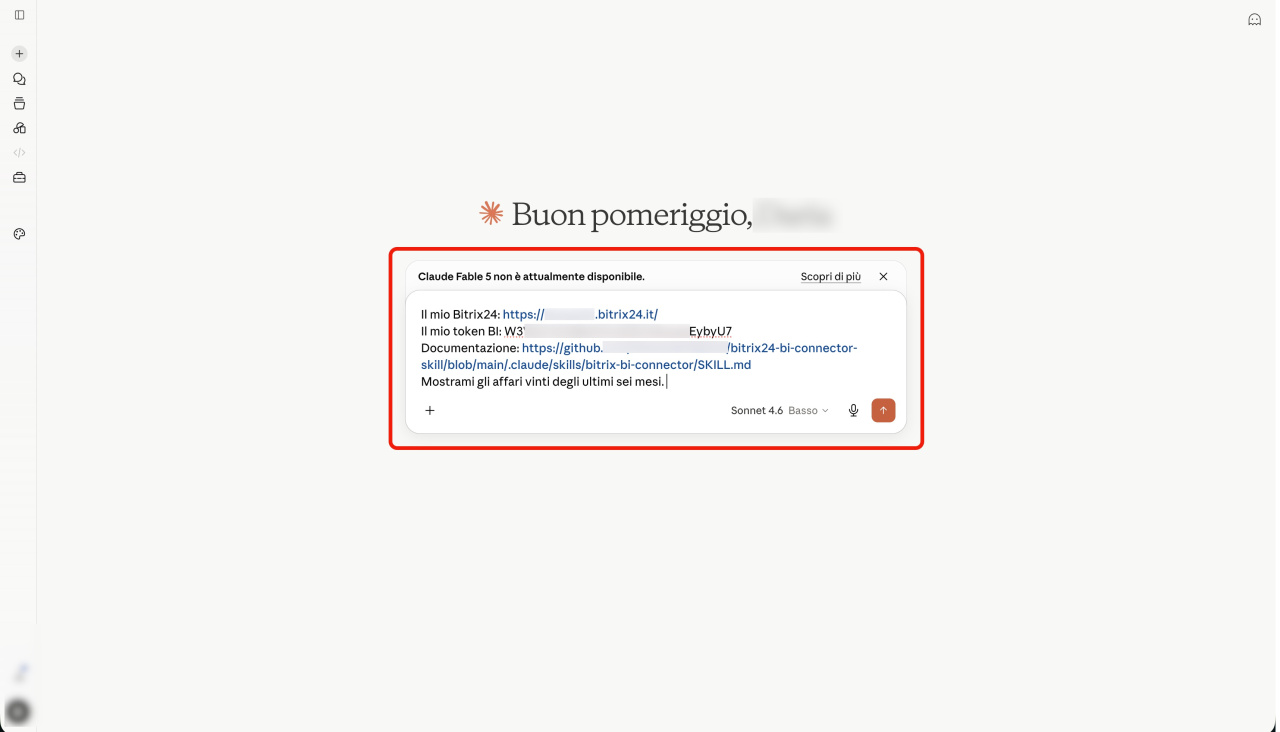
Per assegnare un'attività è sufficiente inviare una richiesta nella chat con l'agente IA. Una buona richiesta contiene tutto ciò che serve per lavorare: l'indirizzo di Bitrix24, la chiave di Analisi BI, il link alla documentazione e la descrizione dell'attività.
Esempio di richiesta:
Il mio Bitrix24: https://test.bitrix24.it Il mio token BI: la_tua_chiave_Analisi_BI Documentazione: Link
Mostrami gli affari vinti degli ultimi sei mesi.
Nella richiesta puoi fornire all'agente il link a una skill già pronta. La skill descrive come lavorare con il connettore BI: ottenere l'elenco dei dati disponibili, visualizzare i campi del set di dati richiesto e recuperare le righe applicando filtri per data e altre condizioni.
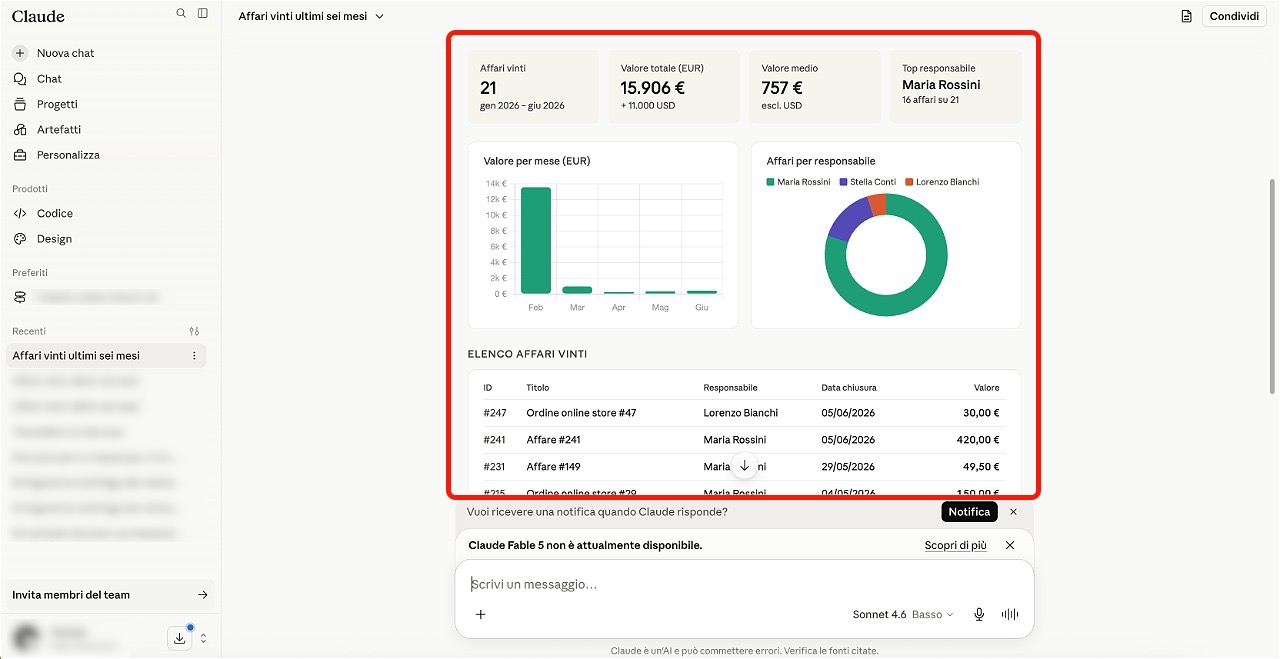
Successivamente l'agente eseguirà l'attività e restituirà una tabella con i dati selezionati e le relative conclusioni. Si tratta solo di un esempio del formato della risposta. Nell'utilizzo reale il risultato dipende dai dati presenti nel tuo Bitrix24 e dai campi disponibili tramite il connettore BI.
Come precisare la richiesta
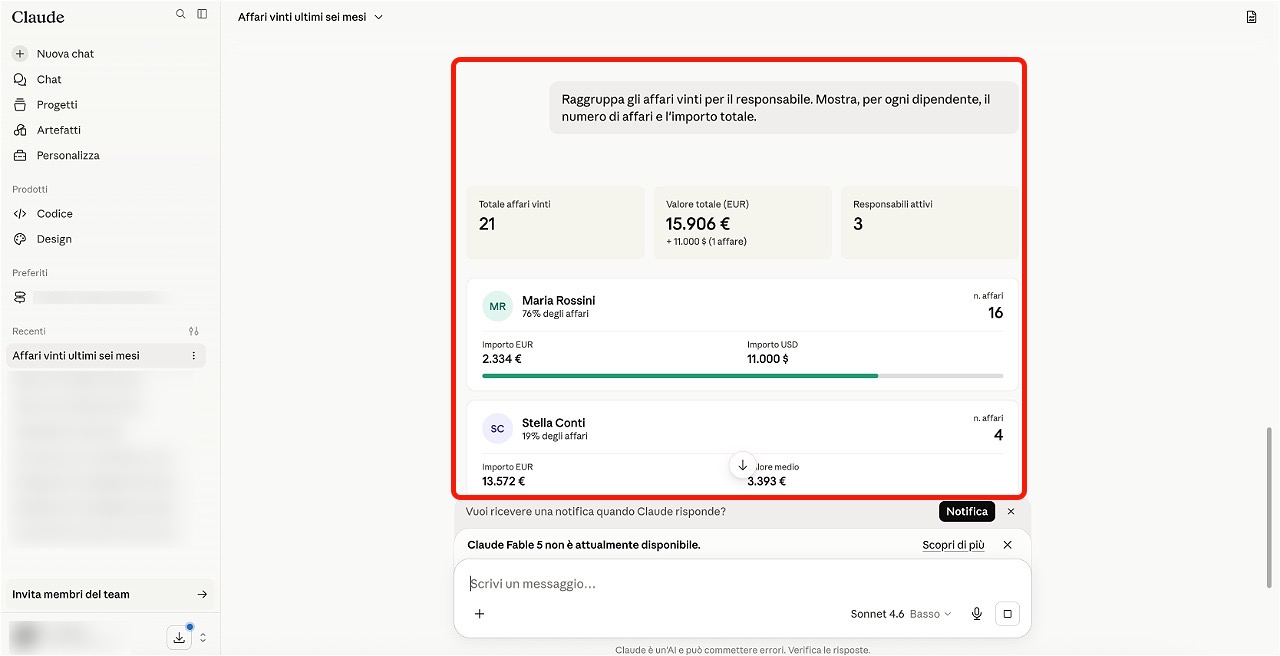
La prima risposta potrebbe essere troppo generica. In questo caso puoi precisare l'attività direttamente nella chat: chiedi di mostrare solo gli indicatori necessari, raggruppare i dati o preparare una breve conclusione.
Ad esempio, puoi utilizzare richieste come queste:
- Mostrare l'importo totale degli affari vinti: "Mostrami solo l'importo totale degli affari vinti degli ultimi sei mesi e il numero di affari".
- Raggruppare gli affari: "Raggruppa gli affari vinti per il responsabile. Mostra il numero di affari e l'importo totale per ogni dipendente".
- Suddividere gli affari per mese: "Suddividi gli affari vinti per mese. Per ogni mese mostra il numero di affari e l'importo totale".
- Preparare una conclusione sui dati: "Prepara una breve conclusione: in quale mese ci sono stati più affari vinti e quale dipendente ha ottenuto l'importo totale più alto".
Queste precisazioni ti aiutano a ottenere il risultato nel formato desiderato. L'agente IA non si limita a restituire le righe dei dati, ma adatta il risultato all'attività che vuoi svolgere.
Come gli agenti IA lavorano con i dati
Un agente IA utilizza il connettore BI seguendo le stesse regole di una normale applicazione. Invia richieste HTTP a Bitrix24 e riceve le risposte in formato JSON. Il connettore BI non restituisce tutti i dati con una sola richiesta. L'elaborazione avviene in più passaggi:
1. Per prima cosa, l'agente individua quali dati sono disponibili tramite il connettore BI.
Generatore BI: set di dati
Esempio di richiesta per ottenere l'elenco dei dati disponibili
Indirizzo della richiesta:
POST https://test.bitrix24.it/bitrix/tools/biconnector/gds.php?show_tables
Corpo della richiesta:
{ "key": "la_tua_chiave_Analisi_BI" }
Esempio di risposta:
[ [ "crm_lead", "Lead" ], [ "crm_deal", "Affari" ], [ "task", "Incarichi" ] ]
2. Successivamente l'agente IA verifica quali campi sono disponibili nel set di dati richiesto. La risposta contiene la descrizione dei campi: nome tecnico, nome visualizzato, tipo di dato e parametri aggiuntivi.
Esempio di richiesta per ottenere la descrizione dei campi
Indirizzo della richiesta:
POST https://test.bitrix24.it/bitrix/tools/biconnector/gds.php?desc&table=crm_lead
Corpo della richiesta:
{ "key": "la_tua_chiave_Analisi_BI" }
Esempio di risposta:
[ { "ID": "ID", "NAME": "Chiave univoca", "TYPE": "NUMBER" }, { "ID": "TITLE", "NAME": "Nome del lead", "TYPE": "STRING" }, { "ID": "DATE_CREATE", "NAME": "Data di creazione", "TYPE": "DATETIME" }, { "ID": "STATUS_ID", "NAME": "Stato", "TYPE": "STRING" }, { "ID": "ASSIGNED_BY_ID", "NAME": "Responsabile", "TYPE": "NUMBER" } ] 3. Dopo aver selezionato i campi necessari, l'agente IA richiede le righe del set di dati.
Esempio di richiesta per ottenere i dati
Indirizzo della richiesta:
POST https://test.bitrix24.it/bitrix/tools/biconnector/pbi.php?table=crm_lead
Corpo della richiesta:
{ "key": "la_tua_chiave_Analisi_BI", "fields": [ { "name": "ID" }, { "name": "TITLE" }, { "name": "DATE_CREATE" }, { "name": "STATUS_ID" }, { "name": "ASSIGNED_BY_ID" } ] }
Esempio di risposta:
[ [ "ID", "TITLE", "DATE_CREATE", "STATUS_ID", "ASSIGNED_BY_ID" ], [ "125", "Richiesta di consulenza", "2026-05-12 10:15:32", "NEW", "17" ], [ "126", "Ordine di attrezzature", "2026-05-13 14:42:10", "IN_PROCESS", "21" ] ]
Che cosa verificare nel risultato
L'agente IA ti aiuta a ottenere ed elaborare i dati, ma è importante verificare il risultato. Controlla che:
- sia stato selezionato l'intervallo di tempo corretto,
- i dati inclusi corrispondano a quelli richiesti,
- i filtri siano stati applicati correttamente,
- non siano presenti campi superflui,
- le conclusioni corrispondano ai dati riportati nella tabella.
Ad esempio, se hai richiesto gli affari vinti degli ultimi sei mesi, verifica che la risposta non includa affari ancora in corso o persi. Se ti servono solo gli affari chiusi con esito positivo, specificalo nella richiesta.
Riepilogo
- I dati di Bitrix24 possono essere analizzati con agenti IA, ad esempio Codex o Claude Code.
- Ti basta descrivere l'attività: l'agente utilizzerà il connettore BI, recupererà i dati, applicherà i filtri e preparerà la risposta.
- Per lavorare sono necessari l'indirizzo di Bitrix24, la chiave di Analisi BI e un link alla documentazione o a una skill già pronta.
- Non pubblicare né archiviare la chiave di Analisi BI in luoghi accessibili a tutti. La chiave consente di accedere ai dati del tuo Bitrix24.